The workspace should help you understand your experiment without making you manage the interface. Here is how the updated pieces fit together.
Key takeaways
- Circuit is the default; Workflow remains available.
- Unsupported conversions retain the current representation.
- Notes, lessons and results support one understandable experiment.
Chapter 01
Start with a readable circuit
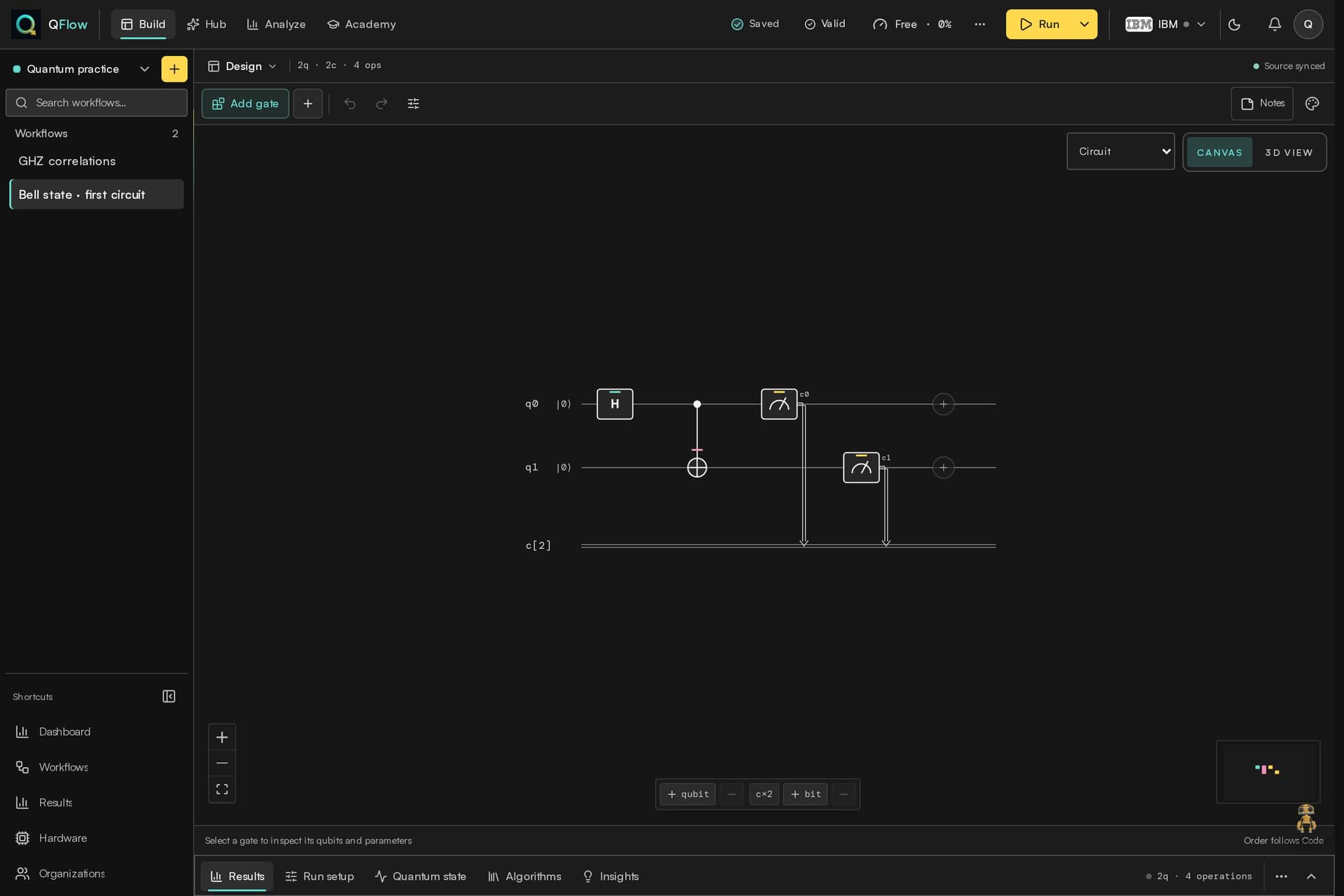
Circuit is the default Design view, with familiar qubit wires and gate symbols. Workflow remains an option when the block relationships help you think. You can choose the representation that suits the task without treating the two layouts as different scientific results.
Insert Gate opens close to the intended position and keeps the active circuit in view. Read the proposed qubits and parameters before adding the operation. Suggestions can help, while the circuit’s rules and your intention still determine the correct edit.
Chapter 02
Switch code formats without losing meaning
The Code area checks whether the active program can be represented in the requested format. A supported switch produces code from the actual circuit operations. An unsupported one keeps the current representation and explains the obstacle.
That matters for examples containing provider-specific instructions or program structures beyond the visual circuit model. A selectable provider name is not a promise that every source program can be translated into it. Keep the original source when a faithful conversion is unavailable.
The idea at a glance
One experiment, four useful views
- Design
Read the qubits, gates and measurements.
- Code
Inspect a compatible representation of those operations.
- Run Setup
Choose an available target and sampling settings.
- Results
Explain the outcome and preserve the settings.
Chapter 03
Leave a note for your future self
Use canvas notes or markers to record a prediction, a parameter choice or an unresolved question. Notes can be minimized, and indicators help find notes outside the visible circuit area. Fitting the circuit should remain useful even when a note is far away.
A short note such as “compare with CNOT removed” is often more valuable than a long description of every click. It explains why the next version exists.
Chapter 04
Choose execution after understanding the model
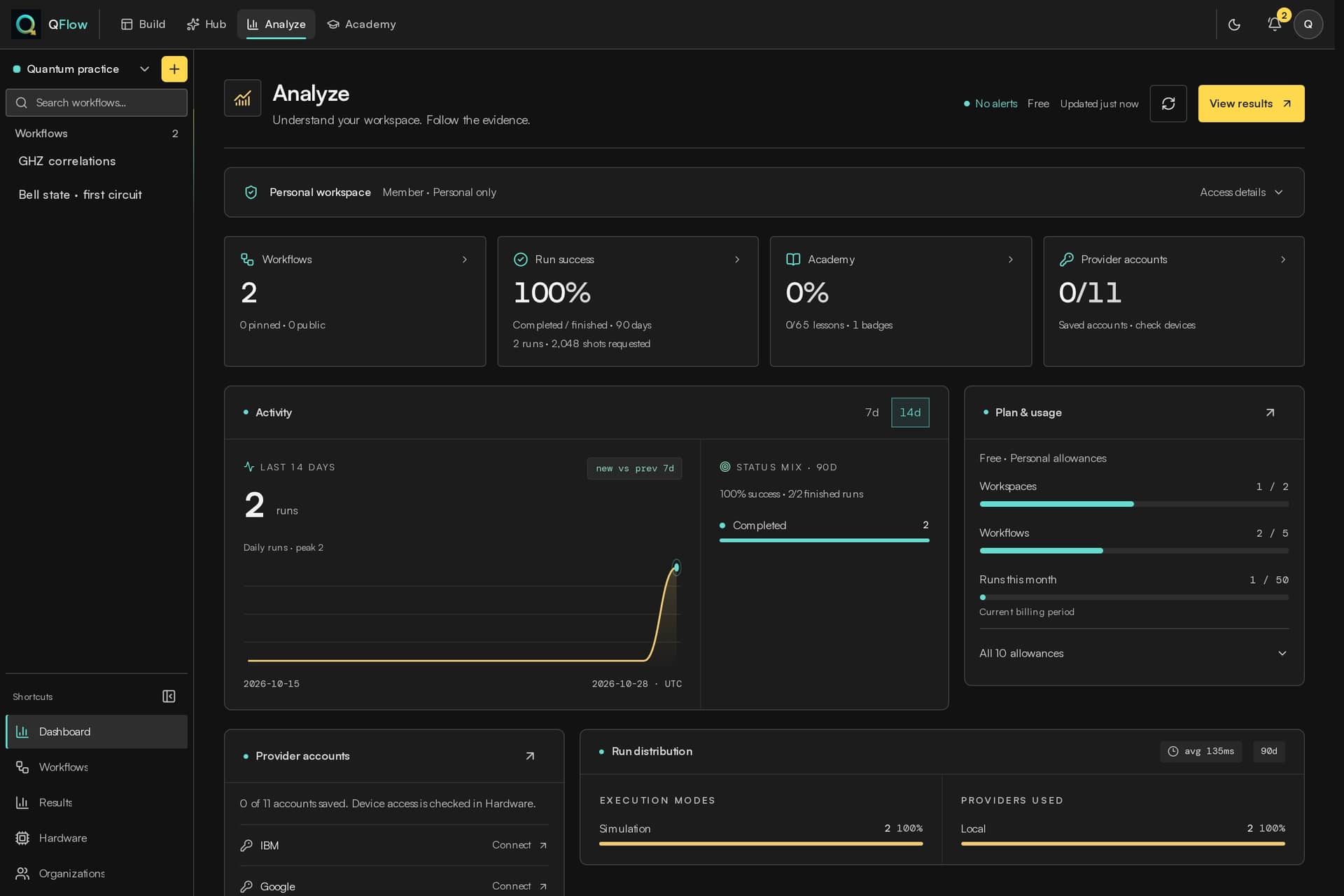
Run Setup holds the target and sampling choices. Results and Analyze help you inspect the returned artifacts. Hardware availability depends on your personal credentials, organization access and administrator policy; the UI should reflect the access you actually have.
Begin with a supported simulator when that answers the question. A hardware run introduces additional constraints, costs and noise, and deserves its own deliberate comparison.
Chapter 05
Get help without giving up the experiment
Academy provides a guided learning path, and Astro can help explain where to go next. Workflow AI can propose supported edits when its service is available. Review a proposal against your current circuit before accepting it.
Try the workspace with one small example: open a starter, predict the result, make a single edit and explain the difference. That is a better introduction to the changes than a checklist of interface features.